JPG to PES Digitizing: Turn Photos into Stitch-Ready Designs
Introduction
You snap a photo of your dog looking extra adorable, design a killer logo for your side hustle, or find a vintage illustration that would look amazing on a hoodie—and suddenly you want to see it stitched instead of printed. Your Brother or Babylock machine is ready to go, but it only understands PES files. That JPG or PNG sitting on your desktop? It’s just pixels with no clue how to become thread. Turning a photo or graphic into a stitch-ready PES file is where the magic (and most of the frustration) happens. When done thoughtfully, you keep the personality of the original while creating embroidery that looks clean, professional, and built to last. Here’s a straightforward, up-to-date walkthrough to make JPG to PES Conversion smooth and successful so your next project comes off the hoop looking just the way you pictured it.
Why Most Photos Need Serious Prep Before Conversion
Embroidery machines don’t see images the way your phone screen does—they follow exact paths of thread. A typical phone photo or web graphic is full of noise: subtle gradients, compressed artifacts, too many colors, and soft edges. When conversion software tries to trace that mess, it guesses wrong, creating jagged satin stitches, uneven fills, and details that disappear. The first rule is simple: the cleaner and simpler the source image, the better the final stitches. A quick prep pass usually improves results more than any fancy digitizing trick.
Choose and Clean Your Starting Image
Resolution is non-negotiable. Anything under 300 DPI starts showing pixelation when you enlarge it for embroidery. Grab the highest-quality version you have. If the image is already low-res, upscale it carefully with free AI tools designed for sharpening and detail recovery, then manually clean up any new artifacts. Next, remove the background completely—busy backgrounds force extra stitches that distract from the subject. Increase contrast so edges pop. Reduce colors to six or fewer early—every extra shade adds thread changes and risk of misalignment. Crop tightly around the main element. These five minutes of cleanup often make the biggest visible difference in the stitched result.
Simplify Without Losing Personality
Embroidery loves bold simplicity. Tiny details, fine gradients, and subtle shading usually blur or vanish when stitched. Enlarge the image on screen to actual stitch size (typically 3–5 inches wide for most projects) and ask: “Does this still read clearly?” If not, thicken lines, merge similar colors, remove small accents, and exaggerate key features like eyes on pet portraits or curves on logos. The goal isn’t a perfect photo reproduction—it’s a design that looks intentional and striking when made of thread.
Pick the Best Free or Low-Cost Conversion Tool
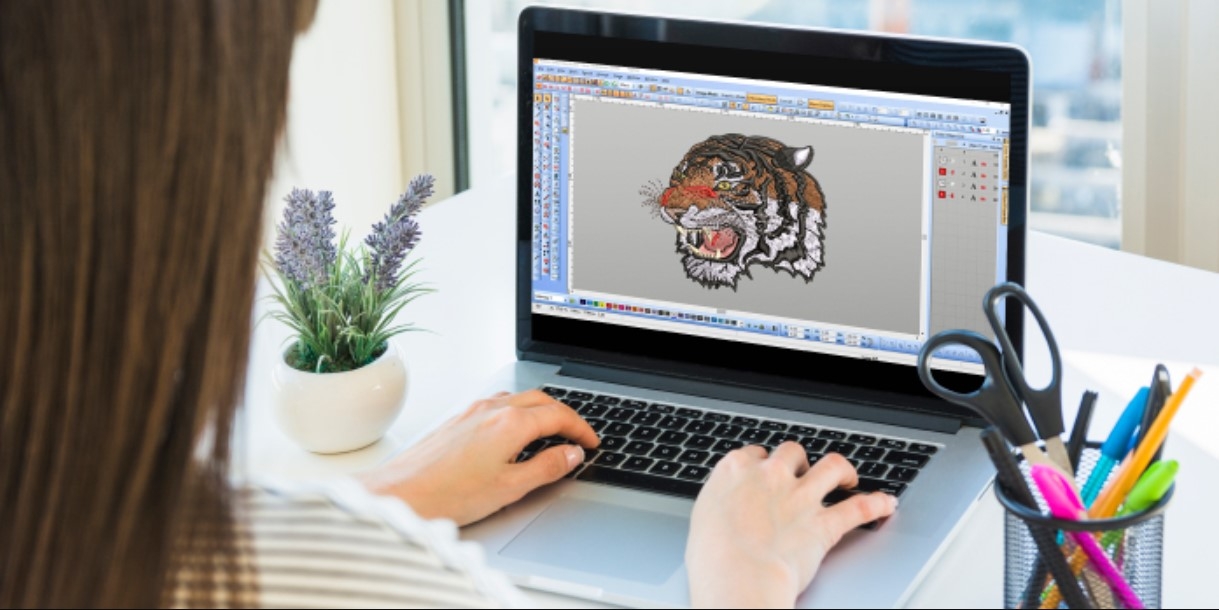
Ink/Stitch (free extension for Inkscape) remains the most popular free choice in 2025. It imports images, lets you trace or redraw, add underlay, adjust density and pull compensation, preview stitches, and export clean PES files. Embrilliance Essentials ($149 one-time) offers a friendlier interface with excellent realistic previews. For more advanced control, Wilcom Hatch provides pro-level features. Start with Ink/Stitch—it’s powerful enough for most personal and small-business projects and costs nothing.
Trace or Redraw: The Quality Turning Point
Auto-tracing works well for simple logos, icons, and high-contrast graphics. Use brightness cutoff or edge detection in Ink/Stitch, then clean up the resulting paths. For portraits, pets, or anything with organic shapes, manual redrawing usually gives better results. Trace major outlines first, then fill shapes. Keep anchor points minimal—fewer points mean smoother satin stitches and less thread nesting. This step is where most quality is either won or lost.
Add Underlay to Keep Everything Stable
Underlay stops stitches from sinking or puckering. Add zigzag under large fills, edge-run along satin columns, and lattice underlay on stretchy fabrics. On fleece or towels, double the underlay and consider a water-soluble topper so stitches sit on the surface. Skipping underlay is the fastest way to make even a great design look flat or distorted.
Set Density, Pull Compensation, and Stitch Length
Density controls thread coverage. Satin stitches usually work best at 0.38–0.42 mm spacing. Tatami fills need 4–4.5 mm spacing to avoid stiffness. Add pull compensation (12–18 % extra width) on knits so shapes stay true. Use shorter stitches (2.5–3 mm) on tight curves and slightly longer on straight sections. Always test on the actual fabric—pique polos behave differently than cotton tees.
Sequence Colors and Minimize Jumps
Stitch center to outside, light to dark, small to large. Group same-color areas to cut thread changes. Convert jumps over 8 mm to hidden travel runs on the back. Clean sequencing keeps fabric flat and reduces trimming time—especially helpful on smaller projects.
Preview, Test, and Tweak
Modern software offers realistic stitch simulators—use them. Spin the design, zoom in, watch the needle path. Then hoop scrap fabric matching your final project and run a test. Check tension, registration, and detail clarity. Make small adjustments (density, underlay, compensation) and test again. One thorough test prevents dozens of ruined pieces.
Exporting the Final PES File
Save as PES with multiple sizes included—small for pockets or sleeves, medium for chest placement, large for backs or bags. This flexibility saves time during production runs. Make sure hoop size recommendations are included so your machine loads the correct template automatically.
Conclusion
Turning any image into a high-quality PES embroidery file is now a straightforward, repeatable process: start with clean, high-resolution artwork, simplify early, add thoughtful underlay, preview carefully, test on real fabric, and export correctly. The result is embroidery that looks sharp, feels premium, and lasts through countless washes.
Grab your next image today, follow these steps, and stitch your first perfect piece tomorrow. Your embroidery machine is ready—give it the clean PES file it deserves and watch your projects come to life beautifully.
Categories
Read More
Buy Old Gmail Accounts Are you on the hunt for a way to enhance your online presence or streamline your operations? Buying old Gmail accounts might just be the solution you're looking for. With their established histories and credibility, these accounts can open doors to opportunities that new ones simply can't match. Whether you're managing multiple social media profiles, engaging in marketing...

If you’re looking to buy Facebook aged accounts, you’re in the right place. Whether you’re a marketer, a small business owner, or someone who needs reliable accounts for advertising or Marketplace access, aged Facebook accounts can save you time and effort. At EverSMM, we provide verified, secure, and ready-to-use aged accounts tailored to your needs. This guide will help you...

Are you ready to buy old Facebook accounts to supercharge your digital marketing, run ads, or unlock the Facebook Marketplace? At SMMExpertService, we make it easy, safe, and quick for you to buy facebook aged accounts — whether you’re after a single account or need to buy facebook accounts in bulk. If you’re in a hurry to get real results, you’re in the right place.✅...